Search This Blog

Wednesday, October 20, 2010

How to send Email using Asp.net or windows Application


First Add namespace :


using System.Net.Mail;


            MailMessage mail = new MailMessage();
            mail.To.Add( Gmail-id of sender );
            mail.To.Add(Email Id of Receiver);
            mail.From = new MailAddress(Gmail-id of sender);
            mail.Subject = "Subject body";

            string Body ="Message Body";
            mail.Body = Body;

            mail.IsBodyHtml = true;
            SmtpClient smtp = new SmtpClient();
            smtp.Host = "smtp.gmail.com"; //Or Your SMTP Server Address
            smtp.Credentials = new System.Net.NetworkCredential
                 (Gmail-id of sender,Gmail-id Password of sender);


            //Or your Smtp Email ID and Password
            smtp.EnableSsl = true;
            smtp.Send(mail);
            MessageBox.Show("your mail successfully send");


By:Ravi Chaudhari

Thursday, September 9, 2010

Windows phone 7 with Database using WCF service

How to create Windows phone 7 application with Database

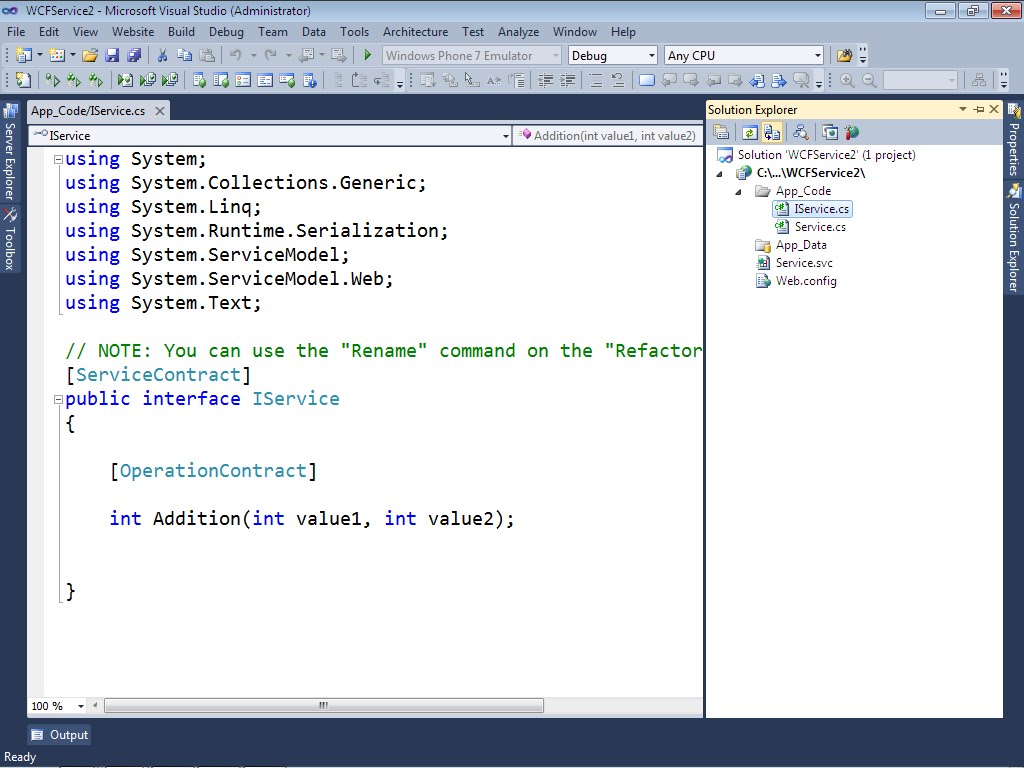
First create WCF service with database
>>Start Visual studio 2010
      >> Goto File menu
             >> New
                   >> Website
                        >> select C# language
                                >> WCF Service

Follow this folloing Step...........................


 Second Create a Windows phone application

>> Start VS 2010
      >> Goto file menu
            >> New
                 >> Project
                      >>  Select C# language
                          >> Silverlight for windows phone

Follow this folloing Step.........


Wednesday, September 8, 2010

All Videos

>> Windows phone 7 with message Box


>> Calculator Example Phone 7 with WCF Service


Monday, September 6, 2010

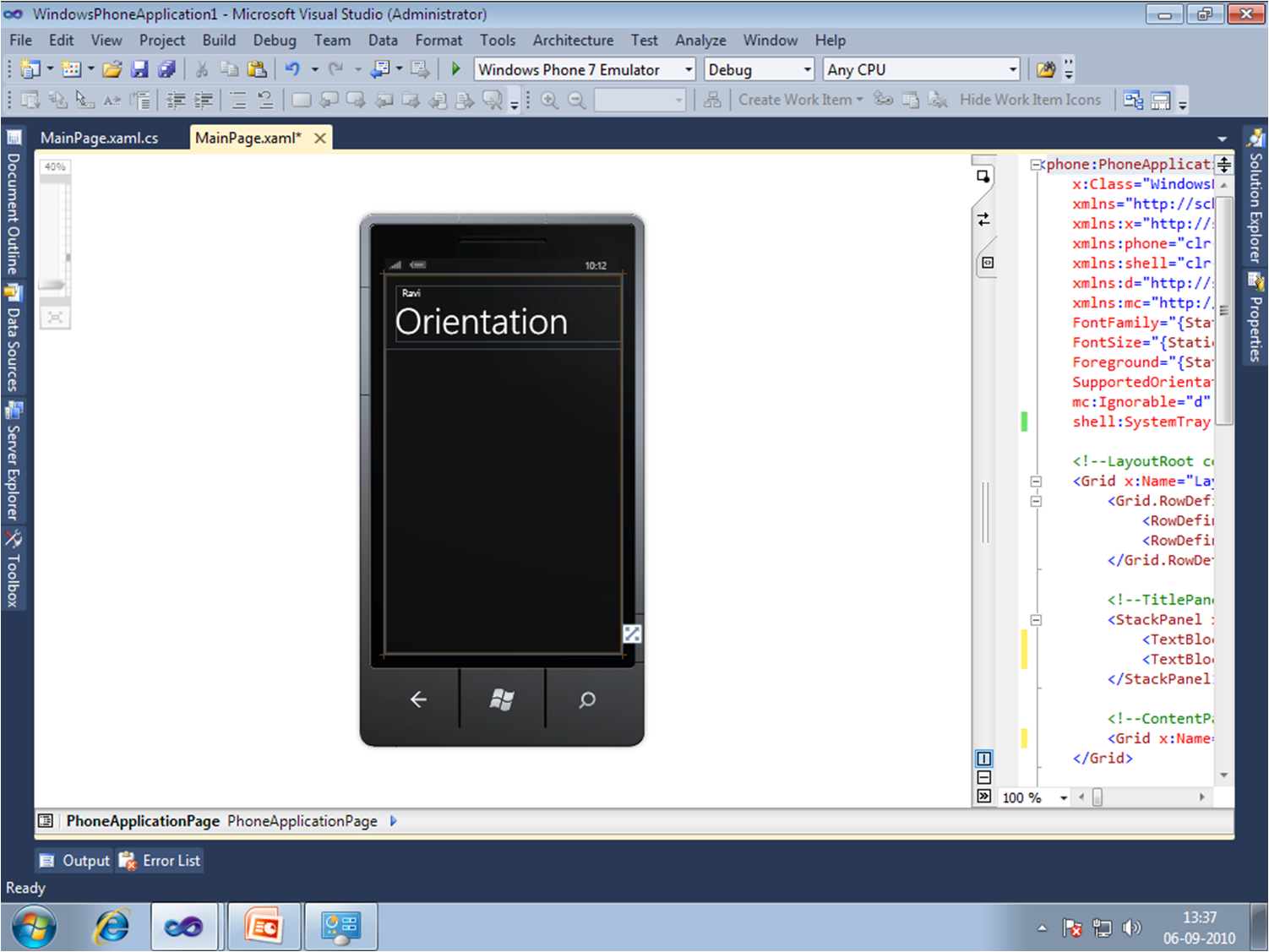
Orientation In Windows Phonw 7

How to Change Orientation In Window phone 7

Follow this step:
Start visual Studio >> Go to File Menu >> New >> Project
Select C# language >> Silverlight for windows phone >> Select windows phone Application


>> Drag and Drop 2 Button


By: Ravi Chaudhari

Friday, September 3, 2010

Sample Example for Window phone 7

How to develop Application In Window Phone 7

Step for develop application:
Start Visual Studio 2010 >> File >> New >> Project
Select C# language >> Silverlight for window phone
Select one Textbox and Button from Toolbox and add/Drag and Drop on Phone Emulator
Go to Button Click Event and type
Messagebox.show("Hi....."+ Textbox1.Text);


Developed By: Ravi Chaudhari